A free course that runs on this page. It teaches you to hand Claude a piece of finance work, not a question: give it the folder, say what you want back, answer its questions and check the file it returns. You practise on the month end folder of a made up wholesaler, so nothing of yours is at risk, and you finish with a variance memo Claude wrote and you checked.
No email neededProgress kept in your browserClaude desktop appPaid Claude planBeginner
Before you start
What you need.
A paid Claude plan
Pro, Max, Ultra, Team or Enterprise. Handing work to Claude is not part of the free plan.
The Claude desktop app
For Windows or Mac, open and signed in. Claude reaches the files on your computer through the app, so keep it open while it works on them.
The practice folder
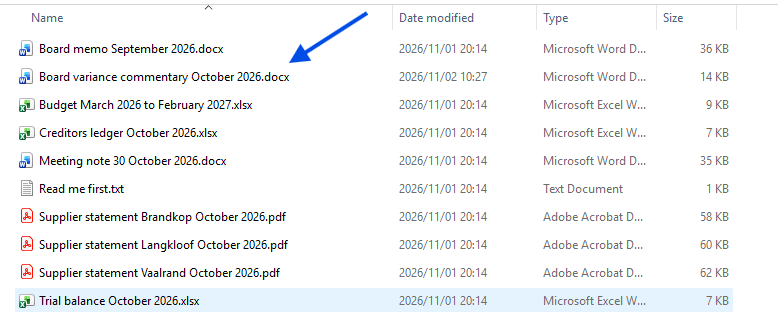
The October month end of Kransberg Wholesale: a trial balance, the budget, the creditors ledger, supplier statements, last month's board memo and a meeting note. Unzip it into a folder of its own, for example C:\Training.
Zip file, 234 KB. Kransberg Wholesale is invented for this course. Every company, supplier, account, figure and document in it is made up.
A question, or a piece of work
Lesson 1
A question, or a piece of work
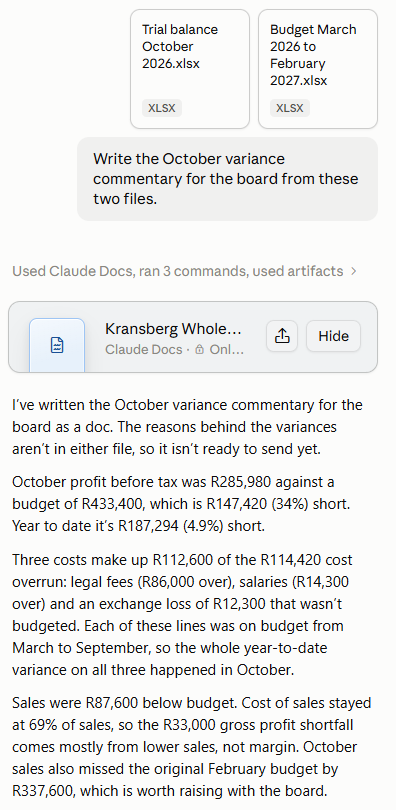
Most people use Claude by asking it things. You type a question, attach a file or two, and Claude works from what you gave it. It can do a lot with that. Ask for the October commentary with the trial balance and the budget attached, and it may write the whole memo for you.
When I tried it, that is what happened. Claude wrote the commentary, then said it was not ready to send, because the reasons behind the variances were not in either file. They were in the meeting note in the same folder, and Claude never saw it. A question only gets what you attach, and the memo it writes sits in Claude, not in your folder.
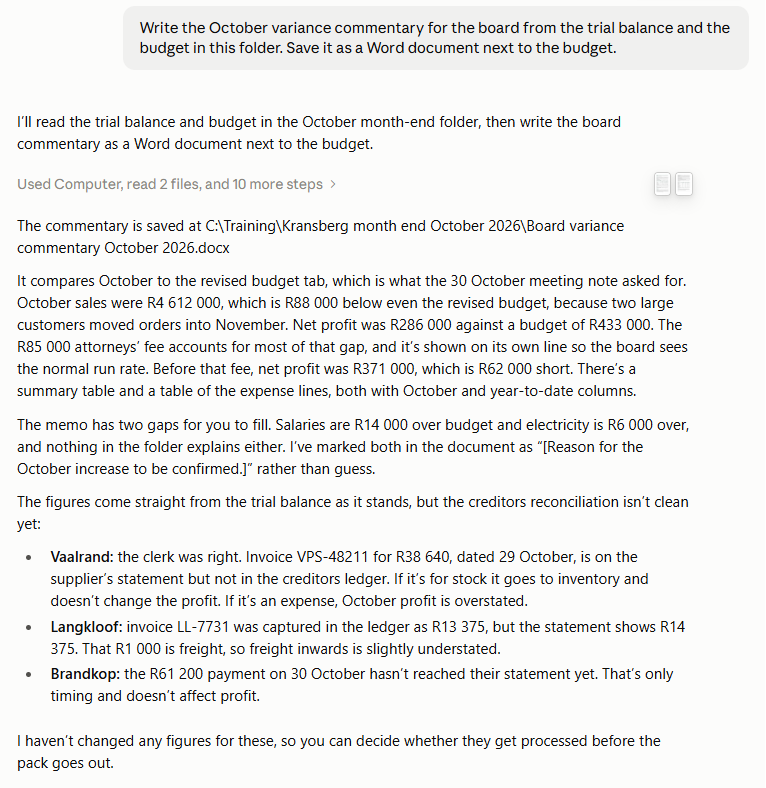
Handing over work is the other way to use it. You give Claude the whole folder and say what you want back. It plans the steps, reads what it needs from the folder, does the work and saves the finished file next to yours. Your part is the instruction at the start and the check at the end. The middle is Claude's.
In the Claude desktop app this is called Cowork. If your message box shows Chat and Cowork, pick Cowork. If it shows neither, you have the newer version of the app, and any conversation can take on work once you give it a folder.
Asked as a question, with the trial balance and the budget attached. Claude writes the memo, then says the reasons for the variances are not in either file.Handed over, with the folder. Claude finds the reasons in the meeting note, saves the memo beside the budget and marks the lines nothing in the folder explains.
The finished memo, saved in the folder beside the budget.
Try it
A question, or a piece of work?
Sort each job. The card tells you why once you choose.
Reconcile the supplier statements against the creditors ledger and list every difference in Excel.
What does IFRS 16 require for a short term lease?
Write the October variance commentary from the trial balance and the budget, as a Word memo.
Make this paragraph to the auditors read less stiffly.
Every Monday, list the supplier emails that query an invoice.
Explain the difference between a provision and an accrual.
Lesson 1 ticked off
Lesson 2
The folder, the connectors and the permissions
Before you hand anything over, decide what Claude can reach and when it has to stop and ask you. That comes down to the folder you give it, the connectors you add and the permission mode you choose.
The working folder
Claude can only read and change files in a folder you have given it. Give it one folder per job, with copies of the files that job needs and nothing else. Not your Documents folder. Never the desktop.
You choose the folder when you start. On the newer version of the app, click Project or folder under the message box, choose Folder and pick the folder on your computer. Not Project: a project holds files you upload to Claude itself, and this course works on the folder on your computer.
Connectors
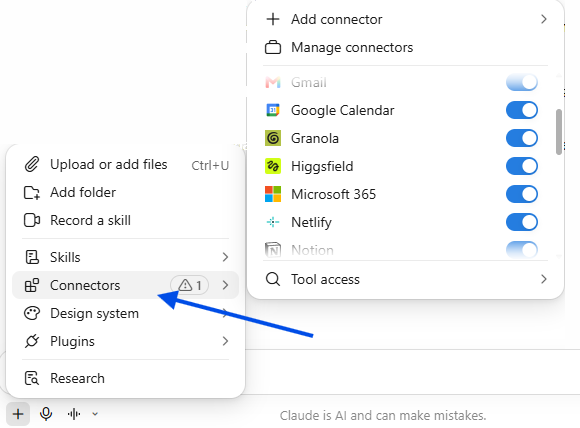
Connectors are how Claude reaches your email, your calendar and your cloud storage, such as OneDrive or Google Drive. Add one with the + in the message box: choose Connectors, then Add connector. Once your mailbox is connected, a task can read the supplier emails itself, and you stop saving them into the folder one by one.
Permissions
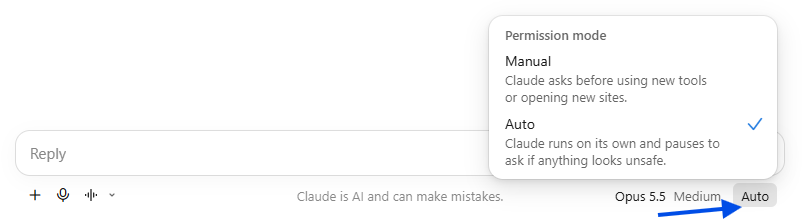
The permission mode decides when Claude stops to ask you. It sits under the message box, on the right, and shows the mode you are in. Click it to change it. On Manual, Claude asks you before it uses a new tool or opens a new site. On Auto, it carries on by itself and pauses to ask only if something looks unsafe. Older versions of the app also offer Skip, which never stops to ask and checks nothing. Whichever you choose, Claude asks before it deletes a file for good.
My advice: run every new kind of job on Manual the first time, and watch what Claude asks to do. Once you know the job, switch to Auto and save yourself the clicks. If the job moves money, sends anything in your name or changes files that matter, stay on Manual.
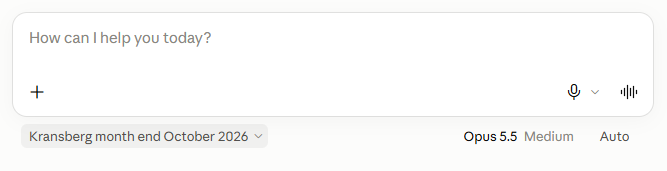
Once you choose it, the folder shows under the message box. Here it is the Kransberg folder, and nothing else.
Connectors sit under the + in the message box. Add only the ones the job needs.
Permission mode, opened from the button under the message box. Start on Manual.
Quick question
Which folder should Claude work in for the Kransberg month end?
Your turn
Have Claude read the whole folder
Start a task with the Kransberg folder, on Manual, then paste this and send it.
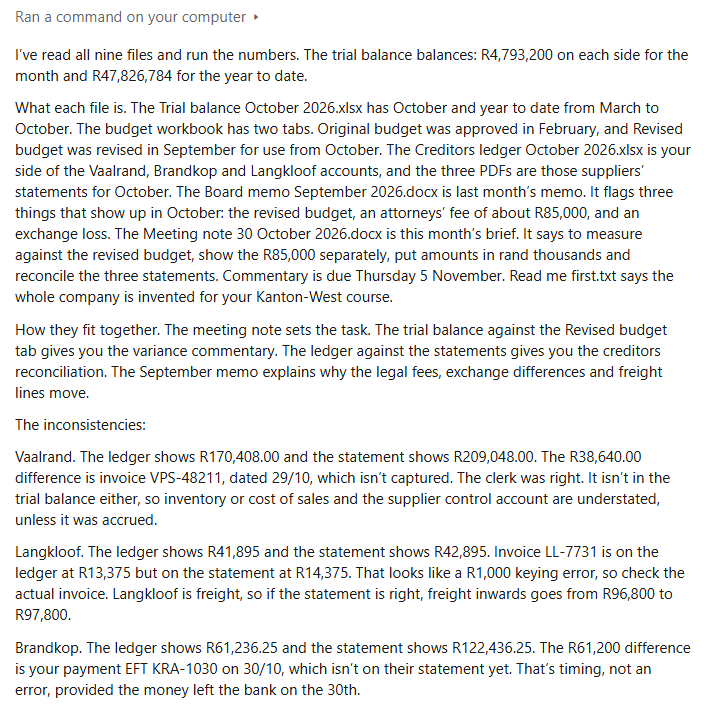
Read everything in this folder and write me a short brief: what each file is, how the files relate to each other, anything that looks inconsistent between them, and anything I should look at first.
What came back on the Kransberg folder.
The folder has these planted in it. Look for them in what comes back. If Claude found them, it read the files. If it missed one, ask it why.
A Vaalrand invoice on the statement that the creditors ledger does not have.
A Brandkop payment of R61 200 that is a timing difference.
A Langkloof invoice that is R1 000 different between the statement and the ledger.
A budget with an Original tab and a Revised tab, and a meeting note that says which to use.
Lesson 2 ticked off
Lesson 3
Which work to hand over
Not every job is worth handing over. The ones that are have several steps, use your files or your mailbox, come round every week or month, and end in something you can check against a source. Everything else is still a question: a definition, a second opinion, a paragraph to tighten.
Test a job of your own
Tick what is true of the job.
Work that runs on a schedule
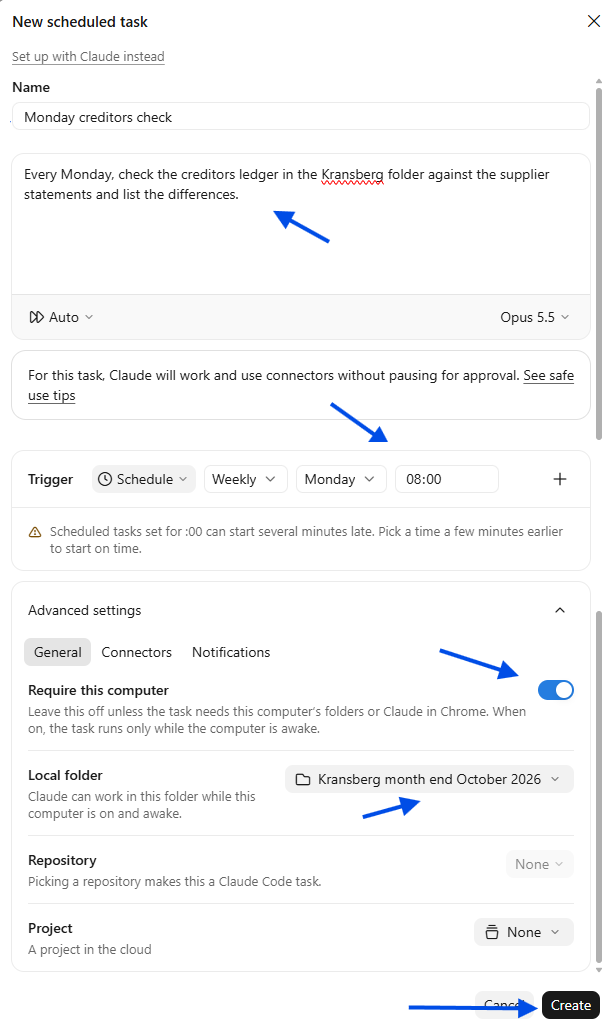
A job that comes round every week can run by itself. Click Scheduled in the left sidebar, then New task, then Set up manually. Give the task a name, write what it should do, and set the trigger: how often, which day and what time.
Where it runs matters, and one switch decides it. Under Advanced settings there is Require this computer, and the app tells you to leave it off unless the task needs a folder on your computer. Left off, the task runs online, on Claude's side, with your connectors, so it keeps time while your computer sleeps. Switched on, the task can work in a folder on your computer, but it runs only while that computer is awake and online. A task on the Kransberg folder needs it on.
Try it
What runs while your computer sleeps?
Every Monday, list the supplier emails that query an invoice.
Uses your mailbox, through the email connector.
Runs
Every Monday, check the creditors ledger in the Kransberg folder against the statements.
Uses files on your computer.
Runs
Both run. The computer is awake and online.
A weekly task set up by hand. The Kransberg folder is on this computer, so Require this computer is switched on.
Lesson 3 ticked off
Lesson 4
Your first full task
The brief is the instruction you hand over with the work. A good one says what you want back, which files to use, and what only you know. That last part is the one people leave out. When I handed the Kransberg job over without it, Claude found the fee that will not recur and the right budget tab by itself, in the meeting note and the budget. What it could not know was where the board draws the line for comment, R50 000 or 10% from budget, so it also wrote up salaries, which were only R14 000 over. Nothing in the folder says where that line is. Only you know it.
Build your brief
Write your brief here
Your brief
Your brief builds here as you type.
Start a new task on the Kransberg folder, on Manual, and send your brief. Your words will differ from the pictures below, and that is fine.
Allow the folder, then let it work
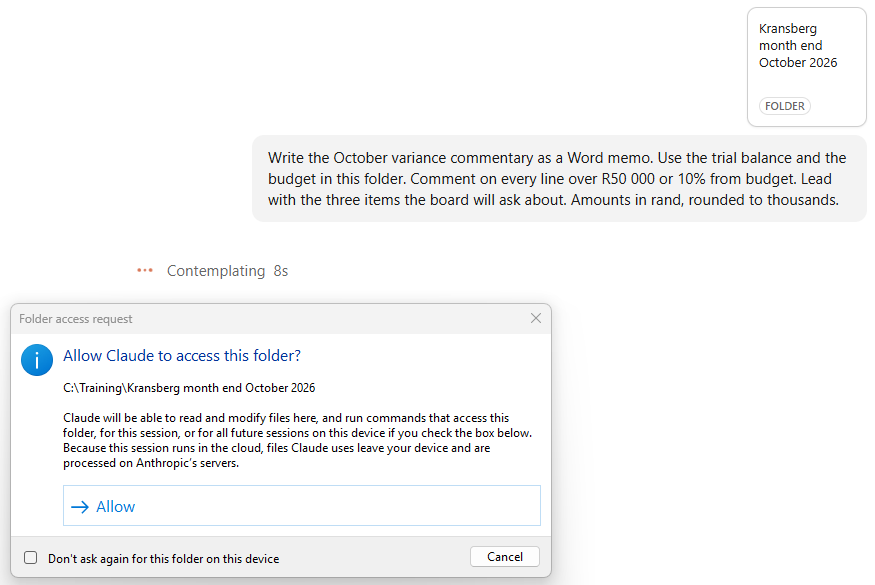
On Manual, the first thing Claude asks is whether it may open the folder. Read that box before you click Allow. It says the files Claude uses leave your computer and are processed on Anthropic's servers, which is one more reason to give it only the files the job needs. After that, Claude works through the job and comes back with the memo.
On Manual, Claude asks before it opens the folder, and the box tells you where the files go.
Answer what it could not confirm
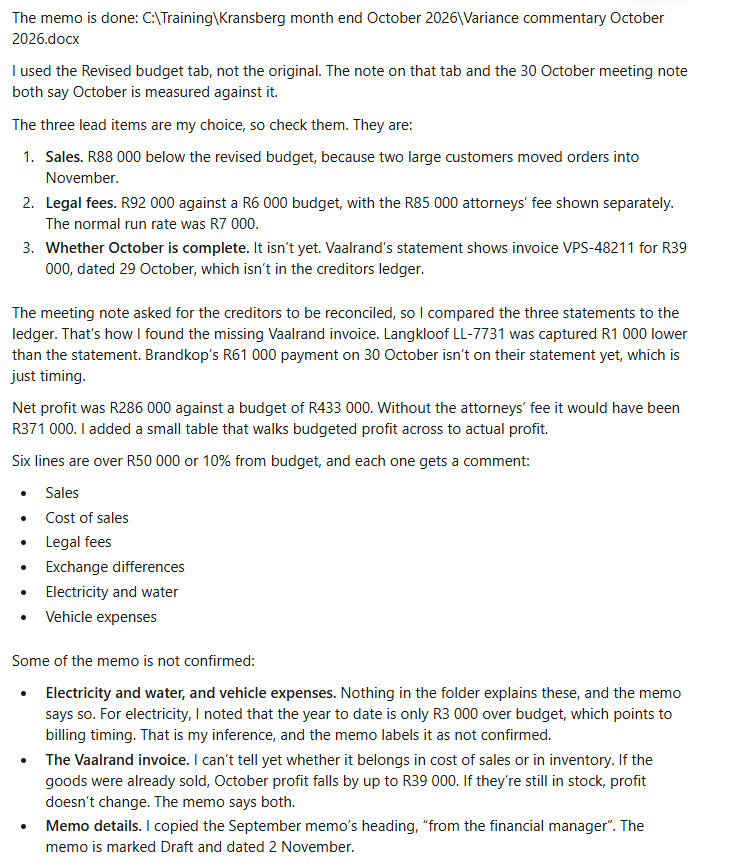
Read the reply, not only the memo. Claude says which choices were its own and what it could not confirm. In my run it picked the lead items itself and asked me to check them. It could not explain electricity or vehicle expenses, and it could not tell whether the Vaalrand invoice belongs in cost of sales or in inventory, because nothing in the folder says. Each of those is a question for you. Answer it, and add the answer to next month's brief.
The reply: the lead items it chose, the lines over the limit, and what it could not confirm.
Tell it what to change
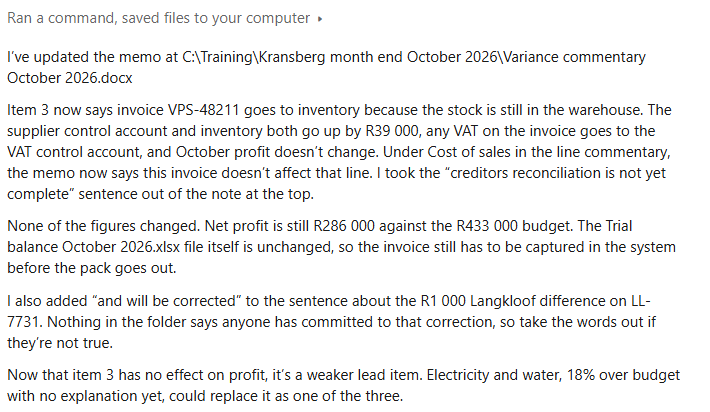
You do not start again. Reply with what you know, in a line or two, and Claude updates the memo. I replied: “The Vaalrand invoice VPS-48211 is for stock that is still in the warehouse. Put it in inventory and update the memo.”
Then read what it says it changed. In my run it also added words I had not asked for, said so, and told me to take them out if they were not true.
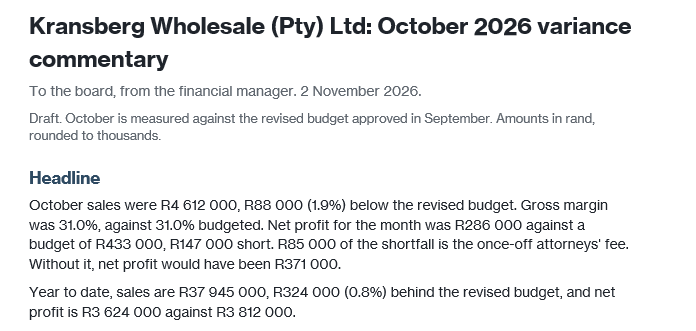
Claude updates the memo, says what changed, and flags the words it added on its own.The top of the finished memo, opened in Word.
Check what came back
Claude did the work. The sign off is still yours.
Try it
Find the figure that is wrong
These lines come from a memo on the Kransberg October figures. One of them is wrong. Click it.
Kransberg Wholesale, October 2026, against budget. An invented company.
Now check the memo Claude wrote for you the same way. Against the revised budget it should comment on sales, cost of sales, legal fees, electricity and water, exchange differences and vehicle expenses. If it comments on freight, it used the Original tab.
Lesson 4 ticked off
Finish
What you can do now
Tell a question apart from a piece of work, and hand Claude the work.
Set up a working folder, the connectors the job needs and the right permission mode.
Choose the work worth handing over, and know what runs while your computer sleeps.
Brief Claude, answer what it could not confirm, tell it what to change and check what comes back.
Answer the check at the end of each lesson to tick it off here.
Your own work
Do this on your own month end.
One to one training
R750 per hour
Your own folder and your own month end, with help beside you. The scope is agreed before the session.